Home Top Ad

Responsive Ads Here

How to forward an email to another email? (How to forward Gmail?) If someone sent a mail to your Gmail ID and you need to send that mail to ...

How to forward an email to another email? (How to forward Gmail?)

If someone sent a mail to your Gmail ID and you need to send that mail to another person, follow the steps below.

How to open gmail on computer and send the same mail to another person: -

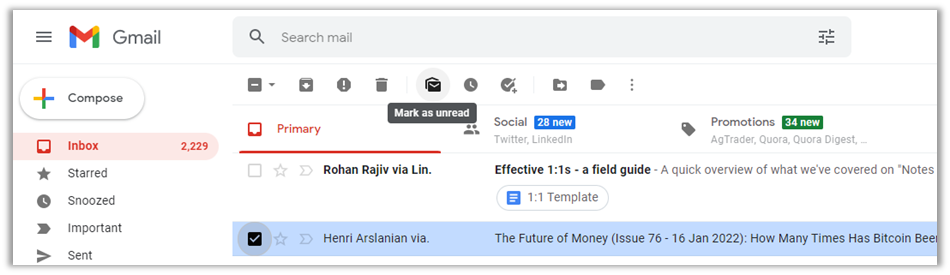
Step 1: - After logging in to Gmail, the Gmail Dashboard will open as shown in the picture below. 

Step 2: - Open the sender's Gmail. Gmail's dashboard opens as shown in the picture below.  

Step 3: - Now to send the mail to another person's mail, click on the Forward button as shown in the picture at the bottom. 

Step 4: - Then in To Field write the mail of the person to be forwarded to the mail. After entering the mail address as per the picture, click on Send button. 

Step 5: - Your mail is successfully forwarded and sent to that person's mail. Some documents also need to be attached, then go to the attach files, select the document and upload it, then click on the send button.

How to open gmail on mobile and forward the same mail to another person: -

Step 1: - Open the Gmail app.

Step 2: - Gmail Dashboard opens. You can view emails in the inbox. 

Step 3: - Tap on the mail you want to reply to. After opening the mail, tap on the Forward button at the end.  

Step 4: - Then if you have to attach the file by writing the email and information of the person to be sent, then attach and tap on Send button. 

This way you can forward Gmail to other people.

How to reply to incoming emails? (How to reply gmail?) If someone sent a mail to your Gmail ID and you need to reply to that person, follow ...

How to reply to incoming emails? (How to reply gmail?)

If someone sent a mail to your Gmail ID and you need to reply to that person, follow the steps below.

How to open gmail on computer and send reply: -

Step 1: - After logging in to Gmail, the Gmail Dashboard will open as shown in the picture below. 

Step 2: - Open the sender's Gmail. The Gmail Dashboard opens as shown in the picture below.  

Step 3: - Now to reply to the person click on the Reply button as shown in the picture at the bottom. 

Step 4: - After writing the answer in the reply box as shown in the picture below, click on Send button. 

Step 5: - Your reply is sent successfully. Some documents also need to be attached, then go to the attach files, select the document and upload it, then click on the send button.

How to open gmail reply on mobile: -

Step 1: - Open the Gmail app.

Step 2: - Gmail Dashboard opens. You can view emails in the inbox. 

Step 3: - Tap on the mail you want to reply to. After opening the mail, tap on the Reply button at the end.  

Step 4: - Then if you need to attach the file by writing the information to be sent, attach and tap on Send button. 

This way you can send replies to incoming Gmail.

How to send a new email? If you need to send mail to someone with your Gmail ID, follow the steps below. Step 1: - After logging in to Gmail...

How to send a new email?

If you need to send mail to someone with your Gmail ID, follow the steps below.

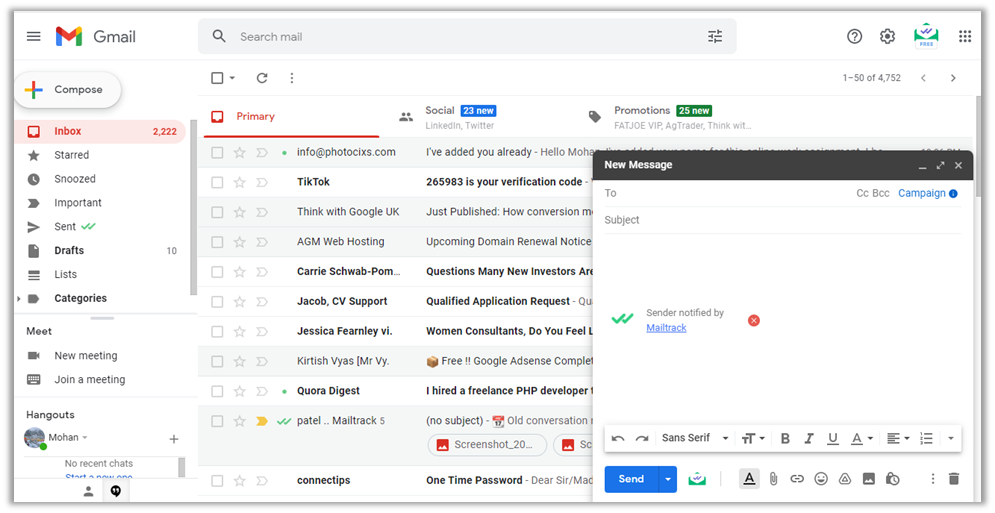
Step 1: - After logging in to Gmail, the Gmail Dashboard will open as shown in the picture below.

Step 2: - Click on the + Compose button on the left side as seen in the picture below. 

‌Step 3: - + After clicking on Compose, a dialog box opens at the bottom right. In that box you have to send the Mail address to be sent to To field, Subject to the subject, Behavior in Mail body and some documents along with the said mail then click on Attach files, document from computer and click on Send button  

Step 4: - Click on Attach files to attach the document as shown in the picture above. 

Step 5: - Then open dialog box opens. You have to select the file to be sent from the computer and click on the Open button. 

Step 6: - The file starts uploading. Finally click on the send button. 

Step 7: - Then the message Sent information appears on the screen. You need to go to the Sent menu on the left side to see the mail sent. 

How to send mail from mobile: -

Step 1: - Open the Gmail app.

Step 2: - Gmail Dashboard opens. You can view emails in the inbox. Tap on the Compose button at the end. 

Step 3: - You have to write the email address of the person to be sent to To field. In the Subject, type the information to be sent to Compose email and tap on the send option after the attach files at the top of the dashboard as shown in the picture below. 

Step 4: - If you need to send any document along with the message, tap on the Attach button next to the Send button. Then two options appear. From there, tap on Attach file. 

Step 5: - Select the file you want to send and tap on that file. 

Step 6: - The file appears to be attached to the mail. Then tap on the Send button. 

In this way you can write information in gmail and attach the file and send it to gmail.


How to view incoming emails? Follow these steps to see if someone has sent a mail to your Gmail ID. How to open Gmail on a computer and view...

How to view incoming emails?

Follow these steps to see if someone has sent a mail to your Gmail ID.

How to open Gmail on a computer and view emails: -

Step 1: - First open any of the web browser (Google Chrome, Microsoft Edge, Mozilla Firefox etc) on the computer.

Step 2: - Type www.gmail.com or mail.google.com in the address bar of Web Brower and press Enter button. If you are not logged in to the computer, the following picture opens. In which you have to click on Login.

Step 3: - If your Gmail account is already logged in, the Gmail Dashboard of Gmail login opens as shown in the picture below. 

Step 3: - Inbox appears as shown in the picture above. You can see the mails sent by people in it. Click on the mail from the person whose mail it came from. Like I click on AGM Web Hosting. Looking at the end of the page, it seems that a document has been attached to the mail. Click on the Download button to download the attached document. 

Step 4: - You can download and view the documents in the mail sent to you. Files downloaded in this way go inside the download folder. Go to that folder and you can see the downloaded file.

How to Open Gmail on Mobile and View Email: -

Step 1: - Open the Gmail app.

Step 2: - Gmail Dashboard opens. You can view emails in the inbox. 

You can open the mail by tapping on the mail. This way you can open the mail by looking at the mail.

How to email a scanned file from CamScanner App? You can email the scanned file to android mobile using CamScanner app. Follow the steps bel...

How to email a scanned file from CamScanner App?

You can email the scanned file to android mobile using CamScanner app. Follow the steps below to email.

Step 1: - Open CamScanner app.

Step 2: - Scan. Then tap the share image before the three dots as shown in the image below.

Step 3: - You can email the file in PDF or JPEG (Image) format. If you email in PDF then tap on Share PDF or if you email in JPEG then tap on Share JPG. I tap here Share PDF. 

Step 4: - Tap on the Share option at the top right of the Mobile screen. 

Step 5: - Tap on Gmail icon from the options seen on Mobile Screen. You can use other options as shown on the screen. 

Step 6: - The scanned file appears to be attached in Gmail. From the email you logged in to Gmail appears. Enter the email address to send to. Then tap on the Send button at the top right. 

This way you can even email the scanned file using the CamScanner app.

How to scan from CamScanner on Android Mobile: - Now that the CamScanner app is installed on your mobile, you can scan documents from that a...

How to scan from CamScanner on Android Mobile: -

Now that the CamScanner app is installed on your mobile, you can scan documents from that app. You can save the scanned file in PDF or JPEG (Image) format.

Step 1: - Open CamScanner app.

Step 2: - Tap on the image that looks like a scanning camera on the far right side of CamScanner. 

Step 3: - The camera of the mobile opens, place the camera of the mobile just above the page to be scanned. Adjust the sheet on the mobile, tap on the image that looks like the camera at the end of the app. 

Step 4: - Then you can use the four corners to increase or decrease the required part in the photo. 

Step 5: - Then tap on the Last Next button. 

Step 6: - The effect setting is used in the photo itself, then tap on the tick mark (). 

Step 7: - A photo is scanned. To scan other photos, tap on Tap to add Pages or tap on the last camera image. I even scan the second sheet here. 

Step 8: - Repeat the above procedures while scanning the second sheet.

Step 9: - This way you can see the two sheets scanned. Now if you need to scan other sheets, scan them. 

Step 10: - After scanning the sheet as required, the said files should be saved in the gallery of the mobile. To do this, tap on the three vertical docs in the upper right as shown in the picture above.

Step 11: - Then tap on the Save to Gallery option from the options shown in the picture below to save the file. 

A popup message appears on the screen of Saved to Gallery. This way you can scan on android mobile using CamScanner app.

How to Gmail by scanning from CamScanner (Mobile App) The camera on the mobile works as a scanner. For that, Mobile should have Camera app o...

How to Gmail by scanning from CamScanner (Mobile App)

The camera on the mobile works as a scanner. For that, Mobile should have Camera app or other scanning apps. There are many types of scanning apps available in the Play Store. But here I have provided information on how to install the popular software CamScanner app on mobile and how to email the file scanned from that app.

How to install CamScanner on Android Mobile: -

Step 1: - Open Play Store app. 

Step 2: - Search by typing CamScanner in the search box of Play store app. 

Step 3: - Tap on Install. 

Step 4: - Then start installing. 

Step 5: - Once installed, the app appears on the home screen of the mobile. 

Step 6: - Open the app.

Step 7: - Tap on Use Now button. 

Step 8: - The first time you open the app, it asks permission to access the photos on your mobile, so tap on Allow button. 

Step 9: - Tap on the image that looks like a scanning camera on the far right side of CamScanner. 

Step 10: - Then CamScanner asks permission to take photos and videos from your mobile, so tap While Using this app. 

Now the home screen of CamScanner app appears. This way you can successfully install CamScanner app on android phone.